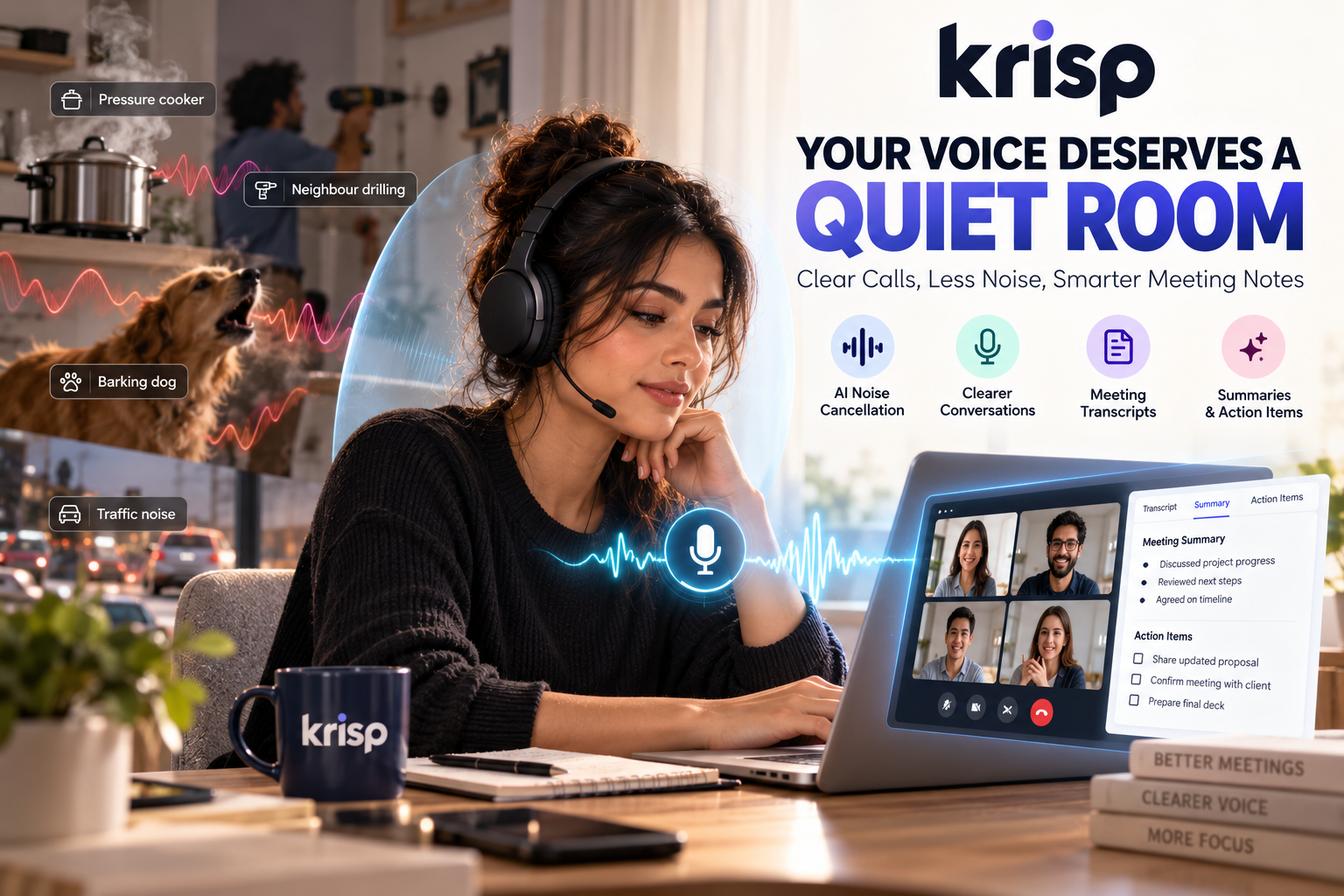
You are ten minutes into an important call. Your answer is clear in your head, and then the pressure cooker whistles, a neighbor starts drilling and someone rings the doorbell, all at once. Your voice disappears under the noise, and the person on the other side politely asks you to repeat yourself. Anyone who works, studies or interviews from home knows this feeling. This guide explains how to get clear audio in plain words, using Krisp as the main example of a tool built for this problem. We will cover how it works, what it can and cannot do, and how to decide if it is worth using.
Why audio matters more than video
People forgive a grainy picture, but they struggle with bad sound. When your voice is muffled, echoing or full of background noise, listeners get tired, miss details and quietly form a worse impression. Clear audio makes you sound prepared and confident, even in a modest room. It also saves time, because you do not have to repeat yourself. For freelancers, students and job seekers, this is a real advantage. The good news is that you can improve audio with a few simple steps, and software like Krisp is one of the options worth knowing about. Small improvements in sound often change how people listen to you.
What is Krisp, in plain words?
It is an app that uses artificial intelligence to remove background noise and echo from your calls, and the company has also added an AI meeting assistant that can record, transcribe and summarize conversations. Reviewers describe it as working with most calling and meeting apps, because it sits between your microphone and the program you use. Treat this as Unit 1 of your research: understand what a tool does before you rely on it for something important. Features and plans change, so read the current details on Krisp before you decide anything.
How noise cancellation works
Normally, your microphone picks up everything in the room and sends it to the call. A noise cancellation tool listens first, separates your voice from other sounds and passes along only what it recognizes as speech. According to reviews, this works in both directions, so it can clean the sound you send and also reduce noise from the people you hear. Some reviewers say the processing happens on your own device, which can be good for privacy, though you should check the company’s current explanation. It is not magic, but for many everyday sounds the difference can be big. You can try Krisp on a real call and judge the result yourself.
Getting it set up
Most tools of this kind create a virtual microphone and speaker on your computer. After you install the app, you open your calling program, such as a video meeting tool, and choose the virtual microphone and speaker in its audio settings. Then you run a test call. Reviews say there can be a short delay before noise starts disappearing. Make sure you select the right devices every time, because a common mistake is leaving the normal microphone selected. Take a screenshot of your correct settings for later. Follow the setup guide on Krisp for your specific computer, and restart your meeting app if the new devices do not appear.
What it can and cannot remove
Noise cancellation works best on sounds that are different from speech, like keyboard clicks, fans, traffic, barking and a nearby TV. It can struggle when many people talk at once, when the noise sounds a lot like a voice or when the sound is very close to your microphone. Treat this as Unit 1 of your expectations: software can reduce noise, but it cannot rescue a terrible setup. Room echo, a weak microphone or a loud environment may still leave traces. Do not promise yourself perfection. Run a test recording, listen carefully and see whether Krisp gives you an improvement that matters for your situation.
Hardware still matters
Even the best software works better with decent equipment. A headset with a microphone near your mouth often beats a laptop microphone across the room. Keep the microphone a hand’s width from your mouth, and avoid covering it with your hand or hair. Choose a quiet corner with soft surfaces like curtains or a sofa, because hard walls make echo. Some reviewers note that noise cancellation can work less well with some Bluetooth or analog connections, so test your own setup. Wired USB headsets are often reliable. When you try Krisp, test your normal headset first, then try a different one if the results are weak.
The meeting assistant: notes without the effort
Beyond noise cancellation, the company offers an AI meeting assistant. Reviews describe features such as transcripts, summaries, action items and the ability to work without sending a visible bot into your call, which some people prefer. This can be useful when you want to focus on the conversation, not on typing. Still, treat AI notes as a draft. Check names, numbers and decisions, because speech recognition can make mistakes, especially with accents, jargon or poor audio. Transcription may also work better in some languages than others. Look at the current feature list on Krisp and match it to how you actually run meetings.
Privacy and consent
Recording and transcribing a conversation is a serious step, and the rules depend on where you live and who you talk to. In many places, you must tell participants or get their permission before you record. Treat this as Unit 1 of your etiquette: always say clearly that you are recording or taking notes, and respect anyone who objects. Store transcripts safely, share them only with people who need them and delete what you no longer need. Read the privacy policy and data handling details on Krisp, including where audio and notes are processed and stored, before using it for sensitive conversations.
For job interviews and client calls
First impressions matter, and a clean voice helps. Before an interview, test your microphone, close noisy apps and tell the people at home you will be on a call. Join a few minutes early, and check how you sound in a short recording. If you use noise cancellation, confirm that it is working and that you picked the correct microphone. Keep a backup plan, such as a phone, in case something fails. Sit near a window for good light and keep your notes within view. For client calls, a short meeting summary afterward looks professional, and tools like Krisp can support that if you use them responsibly.
Mobile versus desktop
Reviewers note a limitation that is easy to miss: the noise cancellation feature appears to be a desktop feature, while the mobile apps mainly handle recording and transcription. If you take most of your calls on a phone, that matters. Check the current feature list for your device before you pay, and test it on your own system. Also remember that computers differ, and results may vary depending on the operating system, the calling app and the hardware. Do not assume a feature you saw in a review will work on your setup. Look at the device support details on Krisp before you subscribe.
Pricing and plans
Pricing is one place where details change quickly. Some review sites mention a free trial and paid plans, while older reviews mention a limited free plan that some users say was removed. Plan names, prices and limits also differ between sources, and billing can vary between monthly and yearly. Treat every number you read online as a clue, not a fact. Open the official pricing page, check what is included in each plan, and note whether the price is per user and how often it is billed. Compare the cost with the time you expect to save. Decide before you click anything on Krisp.
Compare it with other options
Noise cancellation is not only available through one tool. Many video meeting apps include their own noise suppression settings, and some headsets have microphone noise reduction built in. Other AI note taking tools focus on transcripts and summaries, sometimes with a visible bot. Treat this as Unit 1 of your comparison: test two or three options on the same call and see which one fits you. Think about price, ease of use, privacy and which devices you use. A free built-in feature may be enough for light use, while a dedicated tool may help more in noisy places. Put Krisp beside your alternatives and choose what matches your needs.
Troubleshooting common problems
If your voice sounds strange, check that you selected the correct microphone and speaker in the meeting app. If people hear nothing, make sure the app is not muted and that the right device is chosen. If there is echo, use headphones instead of speakers. If the sound has a small delay, restart the app and the meeting. If quality is poor over Bluetooth, try a wired headset. Update the software and your meeting app. If nothing works, contact support and describe what you did. Keep a short note of your settings, and check the help pages on Krisp for guidance.
A thirty second test routine
Before any big call, run a short test. Open your recording app or a test call. Say a few sentences, clap once and type for a few seconds. Listen back with headphones. Then switch the noise cancellation on and off and compare. Check that your voice sounds natural, not robotic or clipped. If it does, you are ready. If not, adjust the microphone position, the settings or the headset. Make this a habit, because small problems are easy to fix before the meeting and hard to fix during it. Use the test to decide whether Krisp actually helps you.
Mistakes to avoid
A few errors repeat. Forgetting to choose the correct microphone. Expecting software to fix a terrible room. Recording without telling anyone. Trusting AI notes without checking. Ignoring the plan details and price. Relying on a feature that is not available on your device. Skipping the test before an important meeting. Whichever tool you choose, including Krisp, a few minutes of preparation will protect your voice more than any promise on a web page.
Questions to ask before you subscribe
What problem am I trying to solve: noise, notes or both? Does the tool work with the apps and devices I use? What does each plan include, and how is it billed? Is there a trial, and what are its limits? How is my audio processed and stored? How do I cancel? Have I tested at least one alternative? Write down the answers. If anything is unclear, contact support before paying. A calm review of Krisp will save you more than a rushed subscription.
A word of honesty
This post is general information, not legal, privacy or professional advice. Details about features, pricing, free plans and device support come from the company’s public pages and review sites, and they change often, so verify everything on the official site before you pay. Reviews are mixed, and your results depend on your microphone, room and software. Recording laws differ by place, so learn the rules that apply to you. And if you decide that Krisp is not the right fit for your calls, that is a sensible outcome of careful testing.
Final thoughts
Clear sound is one of the simplest ways to look professional online. Start with the basics: a decent headset, a quiet corner and a quick test. Then consider whether a tool for noise cancellation or meeting notes adds value for your work. Be honest about privacy, ask permission before recording and check the details before you pay. If you are curious, open Krisp, try it on a real call and listen to the difference. Your ideas deserve to be heard, and a quieter background can help that happen.